I run Wirehole as the VPN server deployment on a small Hetzner box that handles a couple of client laptops and the kind of light traffic you get from a developer who lives in their terminal. After two years of daily use I have opinions about where it earns its keep over plain Wireguard and where I would reach for Mistborn instead. This is the actual install pattern I ship: Ubuntu, Docker Compose, the Unbound version pin that catches everyone the first time, and Pi-hole at the default subnet.
Wirehole is three containers in a Compose file: Wireguard for the tunnel, Pi-hole for DNS-level ad blocking, and Unbound as a recursive resolver so your queries do not go through Cloudflare or Google. About thirty minutes from a fresh VPS to a working tunnel with ad-blocking on every peer. Less machinery than Mistborn, more glue than raw Wireguard. The right tool when you want a Compose stack you can read end to end on a single screen.
What Wirehole actually is
Underneath the marketing, Wirehole is a Compose project wiring three things together on a private Docker network at 10.2.0.0/24:
- Wireguard for the tunnel itself (linuxserver.io’s image, peer config generation included).
- Pi-hole for DNS-level ad and tracker blocking on every connected peer.
- Unbound as a recursive resolver in front of the public root nameservers, so Pi-hole’s upstream queries do not go to a public resolver.
The Pi-hole admin UI is reachable at http://10.2.0.100/admin/ from any peer on the Wireguard tunnel. There is no separate management interface. If you want a web UI for peer management on top of all this, that is what Wireguard Easy gives you, or Mistborn if you want the kitchen-sink version.
Why I run it on Ubuntu
The upstream README does not pin a distro, but the install steps assume Debian or Ubuntu apt repositories. I run it on Ubuntu 22.04 LTS because the Docker apt packages are tested there first and the kernel ships with the Wireguard module already loaded.
A 1GB VPS handles a single-user tunnel. 2GB is the sweet spot once Pi-hole’s gravity database has a few months of real query volume cached. Tighten the box with my Linux server security fundamentals checklist before any of this runs. The whole point of the VPN is to take SSH off the public internet, so getting the host hardened first is non-negotiable.
Open the firewall before Docker runs
This is the single mistake I have watched the most people make. Wireguard listens on UDP 51820 by default. If your provider firewall (Hetzner Cloud Firewall, IONOS firewall, AWS security group, whatever) is blocking inbound UDP 51820, the tunnel will never handshake and you will spend an hour reading container logs that say nothing useful.
Open UDP 51820 on the provider firewall. If you run ufw on the host, add it there too:
sudo ufw allow 51820/udp
sudo ufw reload
Confirm it is listening with ss -ulnp after the stack is up. If port 51820 is not in the output, Docker did not bind it. Compose problem, not firewall problem.
Installing Docker Engine
Use the Docker apt repository on Ubuntu, not the convenience script. Set it up once, copy the steps into your provisioning notes, never look at them again:
sudo apt-get update
sudo apt-get install -y ca-certificates curl gnupg lsb-release
sudo mkdir -p /etc/apt/keyrings
curl -fsSL https://download.docker.com/linux/ubuntu/gpg | \
    sudo gpg --dearmor -o /etc/apt/keyrings/docker.gpg
echo \
  "deb [arch=$(dpkg --print-architecture) signed-by=/etc/apt/keyrings/docker.gpg] https://download.docker.com/linux/ubuntu \
  $(lsb_release -cs) stable" | sudo tee /etc/apt/sources.list.d/docker.list > /dev/null
sudo apt-get update
sudo apt-get install -y docker-ce docker-ce-cli containerd.io docker-compose-plugin
Verify with the hello-world image, then add your user to the docker group so you do not need sudo for every Compose command:
sudo docker run hello-world
sudo usermod -aG docker simon
Log out and back in for the group change to take effect. Skipping this is how you end up with permission denied on the Docker socket halfway through docker compose up.
Cloning Wirehole and the Unbound version pin
Clone the repo and step in:
git clone https://github.com/IAmStoxe/wirehole.git
cd wirehole
Now the part that matters more than anything else in this post.
The default docker-compose.yml upstream uses mvance/unbound:latest for the recursive resolver. That latest tag has broken intermittently for years. Sometimes Unbound starts but answers every query with SERVFAIL, sometimes the container exits two seconds after start. Pin a tagged version. 1.16.0 is the one I have run in production without incident.
Open docker-compose.yml and change the Unbound image line to:
image: "mvance/unbound:1.16.0"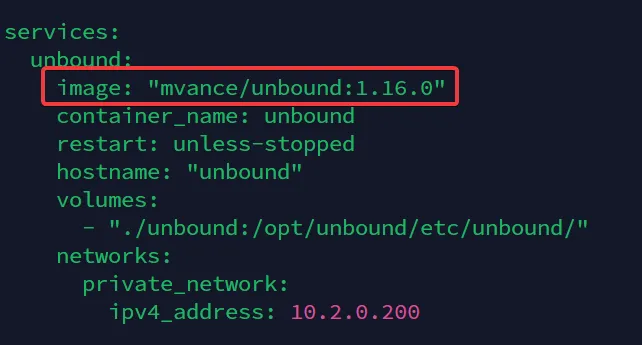
The single edit that prevents a frustrating hour of DNS troubleshooting on first boot. Pin the Unbound image, never run it on latest.
While you are in the file, set the timezone and peer count. PEERS is how many Wireguard client configurations the linuxserver.io image will pre-generate on first start:
environment:
  - TZ=Europe/Bratislava
  - PEERS=5
Five covers a solo developer or small team. Add more later by stopping the stack and bumping the number; the image regenerates configs on the next start.
Uncommenting the forward zone in Unbound
Wirehole ships unbound/unbound.conf with the forward-zone block commented out. The default config breaks without it; the maintainer flagged this in the original walkthrough. Edit the file and remove the leading # from each line of the forward-zone block at the bottom:
cd unbound
nano unbound.conf
cd ..
Bringing the stack up
Run Compose in detached mode:
docker compose up -dThe first run pulls three images and starts the containers. Wait about thirty seconds for Pi-hole to finish its initial gravity build, then confirm everything is running:
docker compose psIf Unbound is restarting in a loop, you skipped the version pin. Go back and fix it.
Downloading the peer configs
The linuxserver.io Wireguard image generates one config file per peer in the container’s data volume at /config/peer1, /config/peer2, and so on. SFTP into the host and grab them out of the bind-mounted directory. Each peer folder has a .conf file for desktop clients and a QR-code PNG you can scan from a phone.
The Pi-hole UI lives at http://10.2.0.100/admin/, reachable only from inside the tunnel. The default admin password is logged inside the Pi-hole container on first boot:
docker logs pihole 2>&1 | grep "password"Save it to your password manager. Never publish port 80 of the Pi-hole container — the admin UI is supposed to be invisible to the public internet.
What I leave at defaults
Most of the Wirehole defaults are sensible. The dials I leave alone:
- The 10.2.0.0/24 subnet. Changing it means rewriting the Pi-hole IP, the Unbound forwarder, and every peer config. Not worth the hour for cosmetic gain.
- The Pi-hole DNS upstream. Wirehole points it at the local Unbound at
10.2.0.200automatically. Switching it to Cloudflare or Google “for speed” defeats the recursive resolver layer that is the whole reason you picked Wirehole over Wireguard Easy. - The Wireguard MTU. The default 1420 works on every connection I have tested. If you are tunneling through a connection that fragments aggressively (some 4G carriers, some hotel Wi-Fi captive portals), drop it to 1280 on the client side, not in the Compose file.
Where Wirehole beats raw Wireguard, and where Mistborn beats Wirehole
I run all three stacks for different jobs. The honest comparison:
| Need | Wirehole | Plain Wireguard | Mistborn |
|---|---|---|---|
| Compose stack you can read in 5 minutes | Yes | N/A | No, opinionated installer |
| Pi-hole adlist on every peer | Yes | Manual | Yes |
| Recursive DNS via Unbound | Yes | Manual | No (uses DNSCrypt) |
| Web UI for peer management | No | No | Yes |
| Host firewall pre-hardened | No | No | Yes |
| Mixes with other Docker apps on same host | Awkwardly | Cleanly | No |
If you want a Compose stack with Pi-hole and a recursive resolver, Wirehole. If you want one box that does router-style work for a household with twenty devices, Mistborn. If you want a tunnel and nothing else, Wireguard Easy.
Verifying the deployment
The five-minute sanity check I run on every Wirehole box before I trust it:
- Connect from a fresh peer. Import
peer1.conf, confirm the tunnel handshakes (the Wireguard app shows a “latest handshake” timestamp updating every couple of minutes), confirm DNS resolves through10.2.0.100. - Test DNS leak. Visit
dnsleaktest.comfrom the connected peer. You should see resolvers on your VPS provider’s network (Unbound doing the recursion from the host), not your ISP and not Cloudflare. - Test ad blocking. Visit a known ad-heavy news site. The blocked count on
http://10.2.0.100/admin/should move every page load. If it does not, gravity has not loaded the default lists. - Test recovery. Reboot the host. Verify all three containers come back up automatically (
restart: unless-stoppedis in the Compose file) and peers reconnect within sixty seconds.
Step 4 is the one most people skip, and it is the one that tells you whether your stack survives a real restart.
Closing the loop
Wirehole has been the deployment stack on a small Hetzner box for the past two years. Survived a kernel update, a Docker engine major version bump, and one Pi-hole gravity rebuild that got stuck and needed a manual restart. Recurring cost: a 4€/month VPS and roughly two hours of attention per quarter. Recurring benefit: SSH on every server I admin lives behind the tunnel and is invisible to the public internet, which means the brute-force scanner traffic that used to fill /var/log/auth.log is now somebody else’s problem.
If you want to layer on threat detection for the public services that still have to face the internet, the companion read is the CrowdSec installation guide. VPN takes SSH off the table; CrowdSec watches the things you cannot hide.