I run Stirling PDF as the document toolkit behind every agency workflow that touches a PDF, and it has quietly become one of the highest-leverage self-hosted tools in my stack. This post is the install I actually deploy: the Compose file, the Cloudflare Access wrapper, and the call I make on when Stirling beats Adobe Acrobat versus when it does not.
For years the path of least resistance for “merge these three PDFs” or “OCR this scan” was ilovepdf.com or Smallpdf. They work, they are free, and they upload your file to a server you do not control. Once I started seeing draft NDAs and unsigned employment contracts going through that pipeline, I went looking for a self-hosted alternative. Stirling PDF turned out to be it.
Roughly 15 to 30 minutes from a hardened server to a working instance with TLS and SSO in front. The container is single-binary-easy; the privacy decision is the part most people get wrong.
Why a self-hosted PDF toolkit matters for agency work
Most teams I work with have a stack of recurring PDF jobs: merge five NDAs into a deal book, OCR a scanned signed contract so the legal team can grep it, compress a 40MB pitch deck before email, split a multi-page invoice scan into per-vendor files. These jobs are mechanical, they are frequent, and they almost always go through a free web tool because no one is willing to pay 240€ per year for an Adobe Acrobat seat to run them.
The catch is the file path. Drag a draft contract into a free web converter and you have just shipped commercially sensitive content to a third party. Their privacy policy probably says “we delete files after an hour”, and maybe they do. That is a “maybe” you do not want stacked behind a tool you use every week.
Stirling PDF removes the decision. The container runs in your network, the file never goes to a third party, and the feature set covers about 90% of what agencies actually do with PDFs.
Prerequisites for the Stirling PDF self-hosted install
A short list of non-negotiables before any of this lands on a server:
- A Linux host with Docker. 2GB RAM is the floor. 4GB and 2 vCPU is what I recommend if OCR and LibreOffice conversions are part of your daily flow.
- A hardened baseline. SSH keys only, root login disabled, UFW with deny-by-default. My Linux server security fundamentals post is the baseline I run on every fresh box.
- A way to put authentication in front of the container. Stirling’s default ships without login. Cloudflare Access is what I use because it is free for small teams and integrates with Google Workspace SSO. Authentik via reverse-proxy auth works too.
- A real domain and DNS access. Cloudflare DNS is the pragmatic default and is required if you use Cloudflare Access.
Storage is rarely a concern. The container itself is small, OCR training data adds a few hundred megabytes per language pack, and processed files are not retained on disk beyond the active session.
The Stirling PDF Docker Compose file
Here is the actual Compose file I deploy. The upstream repository at Stirling-Tools/Stirling-PDF keeps the canonical version current; this is what I check into config management for new deployments.
services:
  stirling-pdf:
    image: stirlingtools/stirling-pdf:latest
    container_name: stirling-pdf
    restart: unless-stopped
    ports:
      - "8080:8080"
    volumes:
      - ./trainingData:/usr/share/tessdata
      - ./extraConfigs:/configs
      - ./customFiles:/customFiles
      - ./logs:/logs
    environment:
      - DOCKER_ENABLE_SECURITY=false
      - LANGS=en_US
      - SYSTEM_DEFAULTLOCALE=en-US
      - UI_APPNAME=Stirling PDF
      - UI_HOMEDESCRIPTION=Internal PDF toolkit
The values worth changing before you bring this up:
LANGScontrols which Tesseract OCR language packs get loaded. Addde_DE,fr_FR, or whichever languages your team works with. Each pack adds a few seconds to container start time.DOCKER_ENABLE_SECURITY=falsekeeps the built-in login disabled. I leave it off and put Cloudflare Access in front of the container. If you flip this totrue, you also need to setSECURITY_INITIALLOGIN_USERNAMEandSECURITY_INITIALLOGIN_PASSWORD.UI_HOMEDESCRIPTIONis cosmetic but useful. Set it to something the team recognises so they know they are on the right tool.
Bring it up:
docker compose -f /srv/docker/stirling-pdf/docker-compose.yml up -dOpen http://server-ip:8080 and you should see the Stirling dashboard with the full operation menu. Do not leave that port exposed to the public internet — the default has no login. The next section locks it down.
Putting Stirling PDF behind Cloudflare Access
Cloudflare Access is the path I default to because it is free for the first 50 users, integrates with Google Workspace and Microsoft 365 SSO, and removes the need to expose port 8080 to the internet at all. The traffic flows: user → Cloudflare edge → Cloudflare Tunnel → Stirling on localhost.
The setup, condensed from the dashboard flow:
- Create a tunnel. In the Cloudflare Zero Trust dashboard, go to Networks → Tunnels and create a new tunnel. Name it
stirling-pdfor similar. Cloudflare gives you a one-linecloudflaredinstall command for your server. - Install the connector on the server. Paste the install command into the server’s terminal and verify the tunnel comes up green in the Cloudflare dashboard.
- Route a hostname to the tunnel. Add a public hostname like
pdf.youragency.com, point it athttp://localhost:8080, and Cloudflare handles DNS, TLS, and routing automatically. - Add an Access policy. In Access → Applications, create a self-hosted application for the same hostname and add an email-domain policy (e.g. allow
@youragency.comonly). Optionally require an Authentik or Google SSO identity provider for the actual login.
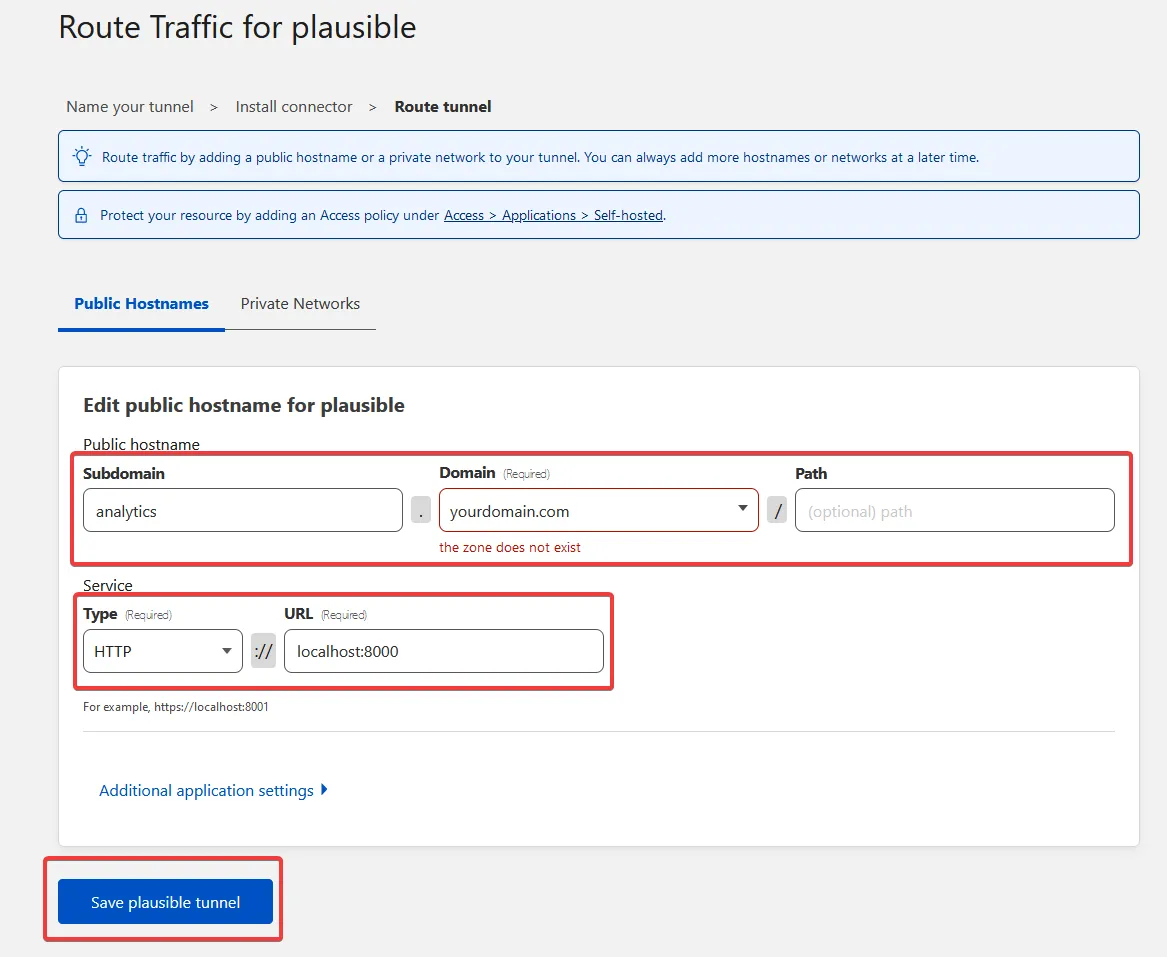
The tunnel route screen in the Cloudflare Zero Trust dashboard. Set the public hostname your team will type, point it at the local Stirling port, and Cloudflare handles TLS and DNS without exposing the server.
After the policy is in place, hitting pdf.youragency.com triggers an SSO login, and only authenticated team emails reach Stirling. The Docker port stays bound to localhost; nothing about the container is on the public internet.
When Stirling beats Adobe Acrobat, and when it does not
Two years of running this in production gives me a fairly clear line on where Stirling is the right answer.
Stirling wins for:
- Batch operations. Merging, splitting, watermarking, or compressing 20+ PDFs in one shot. Stirling’s queue handles it without breaking a sweat; Acrobat’s batch flow is clunky and licensed per seat.
- OCR on scanned contracts. OCRmyPDF under the hood produces clean searchable PDFs. I run it on every scanned signed agreement before filing, so the legal team can grep across years of contracts without opening each file.
- Quick conversions. Word to PDF, HTML to PDF, image to PDF, PDF to image. The LibreOffice integration covers most office-doc conversions without needing a desktop app open.
- Server-side automation. The API lets you wire Stirling into n8n or shell scripts. I have a flow that watches an inbox, OCRs incoming scans, and files them into Nextcloud, no human in the loop.
Acrobat (or another dedicated tool) still wins for:
- Complex form authoring. Interactive PDF forms with calculations, conditional fields, and proper accessibility tagging. Stirling can do basic form work, but Acrobat is a proper authoring environment.
- Prepress and print production. Color separations, ink coverage, PDF/X profiles for print shops. Stirling does not pretend to be a prepress tool.
- Certified e-signatures with legal audit trail. Stirling’s signature feature adds a visual signature; it does not give you a tamper-evident audit trail. For real e-signatures, pair Stirling with DocuSeal.
Verifying Stirling PDF before the team starts using it
A short checklist before you hand the URL to anyone:
- Authentication test. Open the URL from a personal browser without logging in. You should hit Cloudflare Access SSO, not the Stirling dashboard.
- OCR test. Upload a scanned PDF (a phone-photo of a contract is fine). Run OCR. Open the output and try to select text. If text selection works, OCRmyPDF is wired correctly.
- Merge test. Combine three PDFs of varying sizes. Verify the resulting page order matches what you set in the UI.
- Compression test. Take a 10MB+ PDF (presentation deck, scan-heavy report) and run the compress operation. The output should land between 1MB and 4MB without obvious quality loss.
- API test. If you plan to automate, hit
/api/v1/general/merge-pdfswithcurland verify the JSON response. The Swagger docs at/swagger-ui/are the canonical reference.
If any of those five fail, fix the failure before the team logs in. A tool that works “most of the time” gets abandoned within a week.
Closing the loop
Stirling PDF is one of those self-hosted tools where the operational cost is genuinely close to zero. Once it is up and behind SSO, it sits there for months without attention, and the team uses it the same way they used to use ilovepdf.com — except every file stays on your infrastructure. That is the whole pitch.
Pair it with DocuSeal for actual signing, Cryptgeon for sending the resulting PDFs through a self-destructing link, and IT Tools for the developer-side conversions, and you have a small office of self-hosted utilities that does the work the team would otherwise be doing in 40 different free web tools. Recurring cost on my end is whatever fraction of the VPS the container occupies, which is rounding error.